Getting started
This guide will help you get started with the Box Framework starter package. Follow the steps below to download, install, and run the starter package.
Table of Contents
Introduction
The Box Framework starter package is designed to provide a quick and easy way to set up a development environment for your projects. It includes all the necessary tools and configurations to get you up and running in no time.
Prerequisites
Before you begin, ensure you have the following prerequisites installed on your system:
- Java Runtime Environment (JRE): Tested on Java 17 temurin (e.g.,
temurin-17-jre). - PostgreSQL: Version 15 or higher.
Database
You need a PostgreSQL database to get started with the Box Framework.
If you need help setting up your PostgreSQL database, you can use one of our templates. These templates provide a pre-configured database schema and sample tables, allowing you to quickly set up a functional database environment.
Download and Setup
-
Download the Starter Package
Visit the Insubric Box Starter Releases page and download the latest release.
Or download directly in terminal:
wget https://github.com/Insubric/box-starter/releases/download/v0.1.0/box-starter.zip -
Unzip the Package
Extract the downloaded zip file to your desired location. You can use the following command to unzip the file:
unzip box-starter.zip -d /path/to/your/directory -
Navigate to the Directory
Change your working directory to the extracted folder:
cd /path/to/your/directory
Running the Application
-
Install
Run the installation script to set up all necessary dependencies. This script will also configure the connection to your PostgreSQL database:
./install.shDuring the installation process, you will be prompted to enter your PostgreSQL database credentials. Ensure that you have a PostgreSQL instance running and that you have the necessary credentials to connect to it. You will be asked to provide the following configuration details:
- Project Name: The name of your Box Framework project.
- Title: The title of your project.
- Database URL: The JDBC URL for your PostgreSQL database (default:
jdbc:postgresql://localhost:5432/box_demo). - Database User: The username for your PostgreSQL database (default:
postgres). - Database Password: The password for your PostgreSQL database (default:
password). - Database Schema: The schema to use in your PostgreSQL database (default:
public). - Box Schema: The schema for Box Framework-specific tables (default:
box). - PostGIS Schema: The schema for PostGIS-related tables (default:
public). - Docker Name: The name for the Docker image (default:
boxframework/projectname). - Box Framework Version: The version of the Box Framework to use (default:
latest). - Languages: The languages supported by your project (default:
en,it). - Main Color: The main color for your project’s theme (default:
#006268).
-
Start the Application
Once the installation is complete, you can start the application by running:
./run.shThis script will start the development server and you should see output indicating that the server is running.
Once the application is running, you can access it by opening your web browser and navigating to:
http://localhost:8080You should see the Box Framework application up and running.
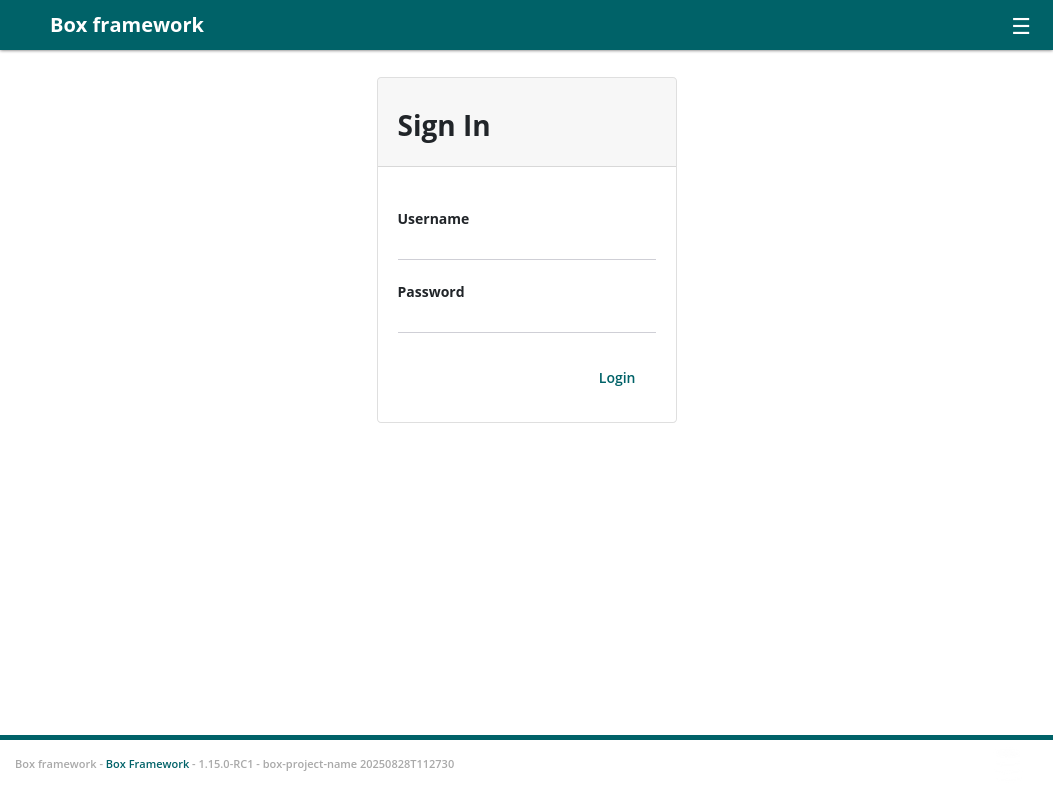
You should be able to Log In with your database username/password.
To explore different way of signin in see the Authentication section
Next Steps
See what the Box Framework gives you out of the box.
Additional Resources
If you encounter any issues or have questions, feel free to open an issue on the GitHub repository.